Your Phone Can Provide Vital Information in an Emergency, If You Set It Up
by Dennison Keller
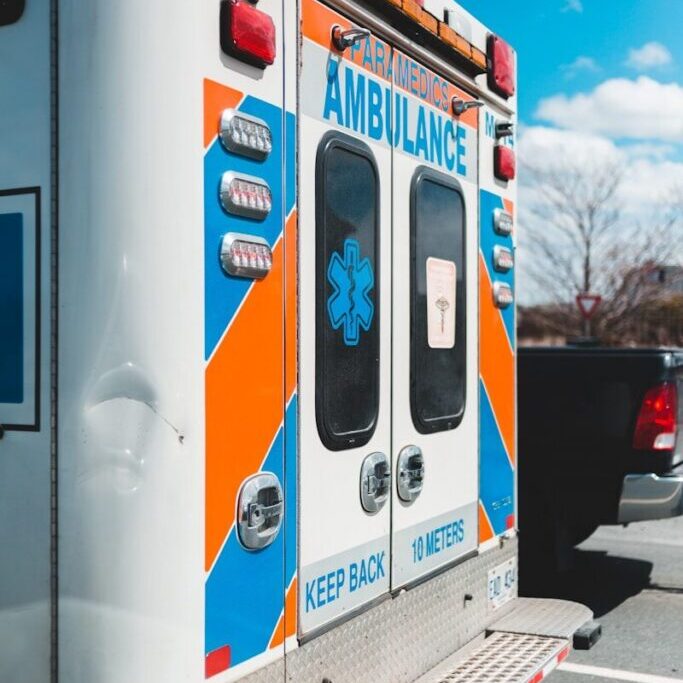
Hope for the best. Prepare for the worst. There’s a reason this proverb has survived the centuries-it’s damn good advice. We all buy home and car insurance, hoping to never make a claim. My estate planning documents are chock-full of contingency planning to address worst-case scenarios that may never materialize. And this month, we welcomed a member of the Fort Thomas Fire Department to train our staff on CPR and AED use, hoping to never have to deploy the skills we just acquired.
Our terrific instructor, Matt Bryant, taught us that a few moments of simple preparation by each of us can greatly help emergency responders deliver the proper care we need in a crisis- namely, set up your emergency contact and health information on your smartphone!
Why Setting Up Emergency Contacts and Health Information on Your Phone Matters
In an emergency, every second counts. Whether it’s a medical event, car accident, fall, or unexpected hospitalization, first responders often rely on the information they can quickly access to make important decisions and contact loved ones.
Firefighter Bryant taught us that one of the first things responders do when they arrive at the scene of an unresponsive patient is check their smartphone for critical information.
Why This Information Is Important
Emergency Medical ID features can provide first responders with:
- Emergency contact names and phone numbers
- Allergies
- Medications
- Medical conditions
- Blood type
- Organ donor status
- Notes about mobility, cognition, or communication needs
In many emergencies, responders may not know who to call or what medical conditions a person has. Having this information available can reduce delays and improve communication during these situations.
Here is a list of instructions for iPhone or Android devices.
How to Set Up Medical ID on an iPhone
On an Apple iPhone, the Medical ID feature is built into the Health app.
Steps to Set Up Medical ID
- Open the Health app
- Tap your profile picture or initials in the upper-right corner
- Select Medical ID
- Tap Edit
- Enter important information such as:
- Medical conditions
- Allergies
- Medications
- Blood type
- Height and weight
- Add one or more emergency contacts
- Turn on:
- Show When Locked
- Share During Emergency Call (optional)
- Tap Done
How to Set Up Emergency Information on an Android Phone
On an Android device, steps may vary slightly depending on the manufacturer, but most phones include emergency information settings.
General Android Setup Steps
- Open Settings
- Tap Safety & Emergency or About Phone
- Select Emergency Information or Medical Information
- Add:
- Emergency contacts
- Medical conditions
- Allergies
- Medications
- Blood type
- Save your information
Some devices also allow you to add emergency information through the Contacts app or Personal Safety app.
Make Sure This Information Stays Up-to-Date
It’s important to check this information periodically to make sure it stays current. In addition, you should make sure your emergency contacts know your wishes regarding your medical care and know where to find any important documents, including a DNR or living will you may have.
But What About My Privacy?
It’s a fair question. I worry daily and try my best to guard against nefarious characters who may try to access my private information. Both iPhone and Android manufacturers insist your medical information is encrypted and secure. Even so, if the risk troubles you, then just enter the information you feel is pertinent. The people who benefit most from this technology are often those with severe allergies, chronic illnesses, implanted medical devices, or medications that could affect emergency treatment. In those cases, the value of having accurate information immediately available can be especially high and may be a worthwhile tradeoff. Plus, the ability to reach your loved ones in an emergency is paramount.
Don’t rely on hope. Be prepared.
Spending just a few minutes preparing your phone could very well take the guesswork and hope out of the equation, and help first responders give you the best possible outcome.